
CBCT Segmentation
Per-tooth STLs, jaws, and the inferior alveolar nerve — automatic, on your own PC.
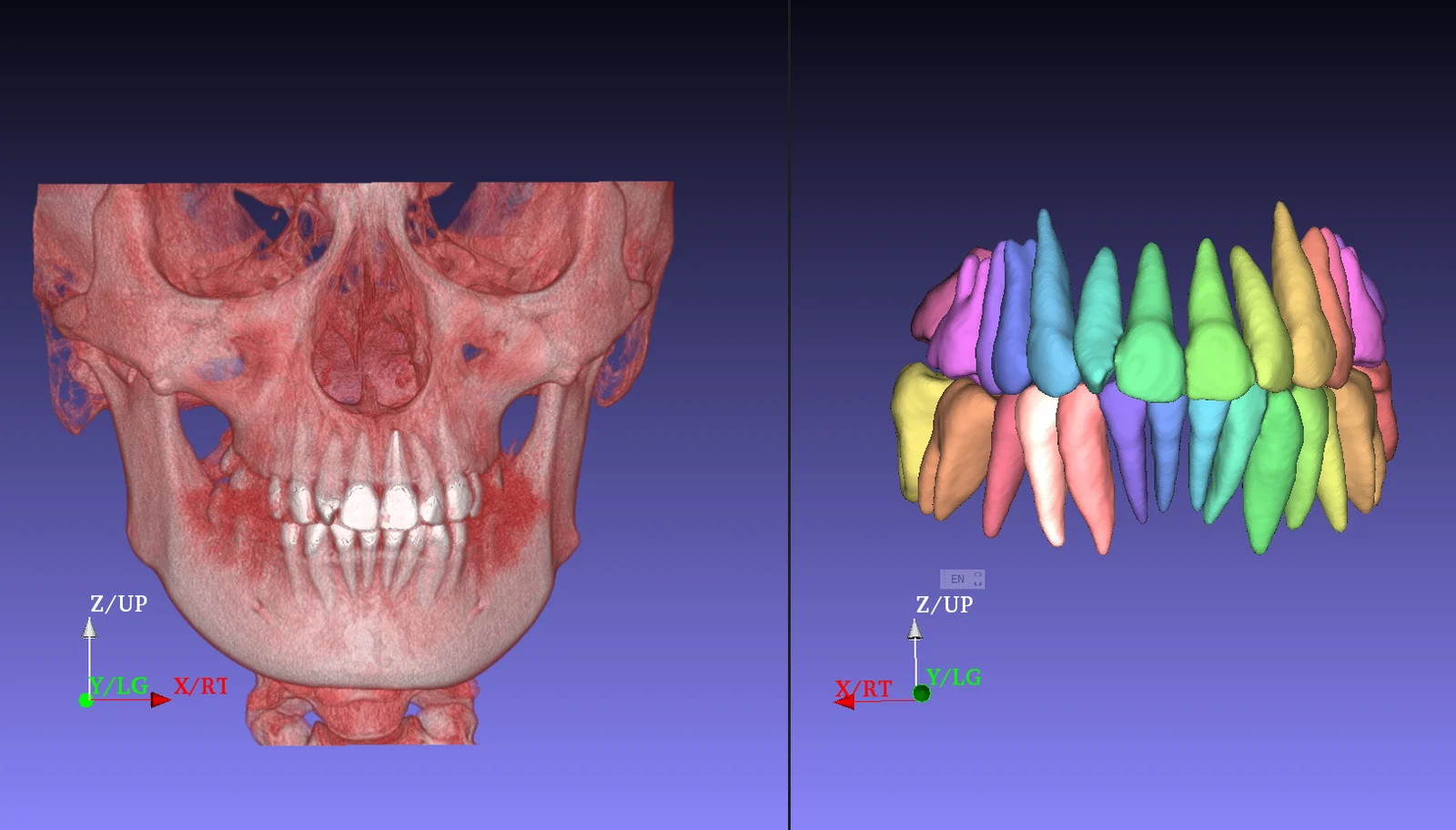
CBCT Segmentation turns a folder of DICOM slices into per-tooth STLs (US tooth numbering), maxilla and mandible meshes — with and without teeth — and the inferior alveolar nerve, in a single automatic pass. It runs inside the Cympha Agent Manager on the user's own Windows PC: CBCT data never leaves the machine and results land in the case folder. Each run is paid per case from the Studio balance on your Cympha account, whether started from the tray or from a Cympha case page; there is no subscription.
Highlights
What you get back
Every successful run drops a complete set of STL meshes into a `cympha_segmentation/` folder inside the case workspace on the user's PC. Nothing is auto-uploaded — the lab decides what to send back to the clinic and when.
- Per-tooth STL per detected tooth, named by US tooth number (1–32)
- Maxilla with teeth + maxilla bone-only
- Mandible with teeth + mandible bone-only
- Inferior alveolar nerve (left + right)
- Combined jaw + teeth mesh for quick visualisation
Two ways to start a run
Both workflows use the same engine and the same per-case price. Pick whichever fits the case.
- Agent Manager tray: right-click the Cympha icon → "Segment CBCT…" → pick a local DICOM folder and an output folder. Useful when the lab is processing a case that isn't on Cympha yet.
- Cympha case page: open the case → click "Segment CBCT" on the case header. The web app sends a request, the user's paired Agent Manager picks it up within ~20 seconds, locates the case folder it already syncs, and runs the pipeline. The button on the case page shows "Queued…", then "Running on <machine name>…", then returns to idle when the STLs are ready locally.
Workflow — clinic-to-lab
The same case flows end-to-end through Cympha without ever uploading CBCT to the cloud.
- Clinic uploads the case (intra-oral scans, prescription) to Cympha; the CBCT DICOM is synced to the lab's PC by the Agent Manager.
- Designer opens the case in Cympha → clicks Segment CBCT — the Agent on their PC runs the pipeline locally and writes per-tooth STLs into the case folder.
- Designer imports the STLs into Implant Master / OrthoPlus / their preferred CAD tool, finishes the plan, and pushes the deliverables back through Cympha.
Privacy and concurrency
Compute stays on the user's machine, and one run-at-a-time enforcement keeps billing fair.
- CBCT data is read directly from the local DICOM folder. No image content is uploaded to Cympha at any point.
- Cympha holds only the job lifecycle (queued → running → finished) so the case page can show status.
- One concurrent segmentation per user across every paired computer. Trying to start a second one while a first is still running returns a clear "already running on <machine>" message instead of double-spending compute time.
Setup
Install once, segment anywhere.
- Install Cympha Agent Manager (free, available from the Cympha account page) and pair it from the in-app prompt.
- Add to your Studio balance on the Cympha profile page — the balance is on your Cympha account, not a single machine. Each run is charged when it starts, and a run that fails is refunded.
- First run downloads the segmentation engine (~3 GB) into the agent's local cache automatically; subsequent runs reuse it.
Ready to subscribe?
Pick the tier that matches your monthly case volume.
Add balance in Cympha